Unified Inbox
When you have two or more accounts linked, the Unified Inbox lets you browse all emails in a single list without switching between accounts.
Entering the Unified Inbox
On the Accounts Home page, click the "Unified Inbox" card at the top. This card only appears when you have two or more accounts linked.
Page Overview
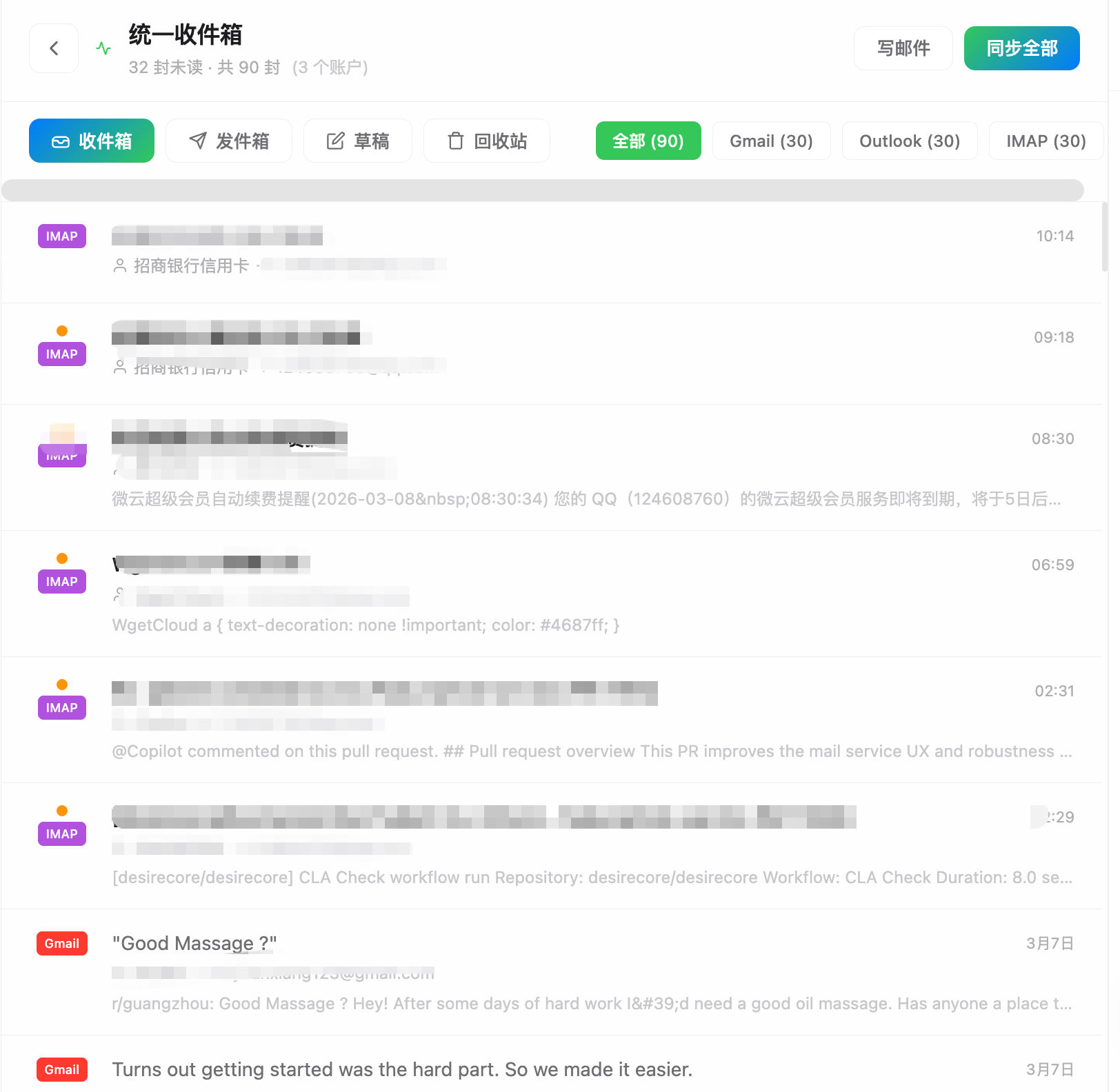
Top Bar
The top bar displays aggregate information for all accounts:
- Unread / Total count — Combined email stats across all accounts
- Account count — How many accounts are currently aggregated
- Sync status — Pulse animation shown during active sync
- Compose — Opens the compose dialog
- Sync All — Triggers email sync for all accounts simultaneously
Folder Tabs
Horizontal tabs let you switch between folders (Inbox, Sent, Drafts, Trash). The email list refreshes automatically when you switch.
Provider Filter
Below the folder tabs, filter buttons allow you to narrow by account type:

- "All" is selected by default, showing mixed emails from every account
- Click a specific provider to show only emails from that type
- Each button displays the email count for that provider
Authorization Failure Banner
If any account's authorization has expired, a prominent banner floats at the top of the page. Click "Re-login" to return to Accounts Home and re-authorize.
Email List
Emails from all accounts are displayed in reverse chronological order. Each email has a Provider badge to identify its source:
- Gmail — Red badge
- Outlook — Blue badge
- IMAP — Purple badge
Unread emails show their subject in bold with an unread indicator dot on the left.
Scrolling to the bottom of the list automatically loads more emails.
Sorting and Search
Sort Options
The email list is sorted by time (descending) by default. Click the sort icon at the top of the list to switch:
| Sort mode | Description |
|---|---|
| Time (default) | Newest first |
| Sender | Alphabetical by sender name |
| Subject | Alphabetical by subject |
| Unread first | Unread emails always on top; rest sorted by time |
Quick Search
Enter keywords in the search box above the email list to filter in real time:
- Searches subject, sender, and body preview
- Filters as you type—no need to press Enter
- Click ✕ on the right side of the search box to clear and restore the full list
For more precise searching (by date range, labels, or attachment types), enter a single-account view and use Advanced Filters.
Labels and Batch Operations
Single-Email Actions
Hovering over an email in the list reveals quick-action buttons:
- Mark read/unread — Toggle read status
- Archive — Remove from inbox (without deleting)
- Delete — Move to trash
Batch Operations
- Click the multi-select button (☑️ icon) in the top-left of the list
- Check the emails you want to operate on (or click "Select all" for the current page)
- A batch-action bar appears at the bottom:
| Action | Description |
|---|---|
| Mark read | Mark all selected emails as read |
| Mark unread | Mark all selected emails as unread |
| Archive | Archive all selected emails |
| Delete | Move all selected emails to trash |
| Cancel selection | Exit multi-select mode |
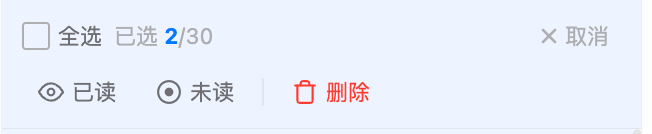
Batch operations in the Unified Inbox work across accounts. For example, you can select emails from both Gmail and Outlook and mark them all as read at once.
Viewing Email Details
Click any email in the list to enter the detail view, which shows the full email body, attachments, labels, and more. Opening an email automatically marks it as read.
From the detail view, you can reply to or forward the email directly.
Next Steps
- Reading Email — Explore the full features of the single-account email view
- Composing — Learn how to send emails