Composing and Replying
DesireCore lets you send emails directly within the app—no need to switch to a webmail interface.
Composing a New Email
Click the Compose button in the top bar of the email view to open the compose dialog:
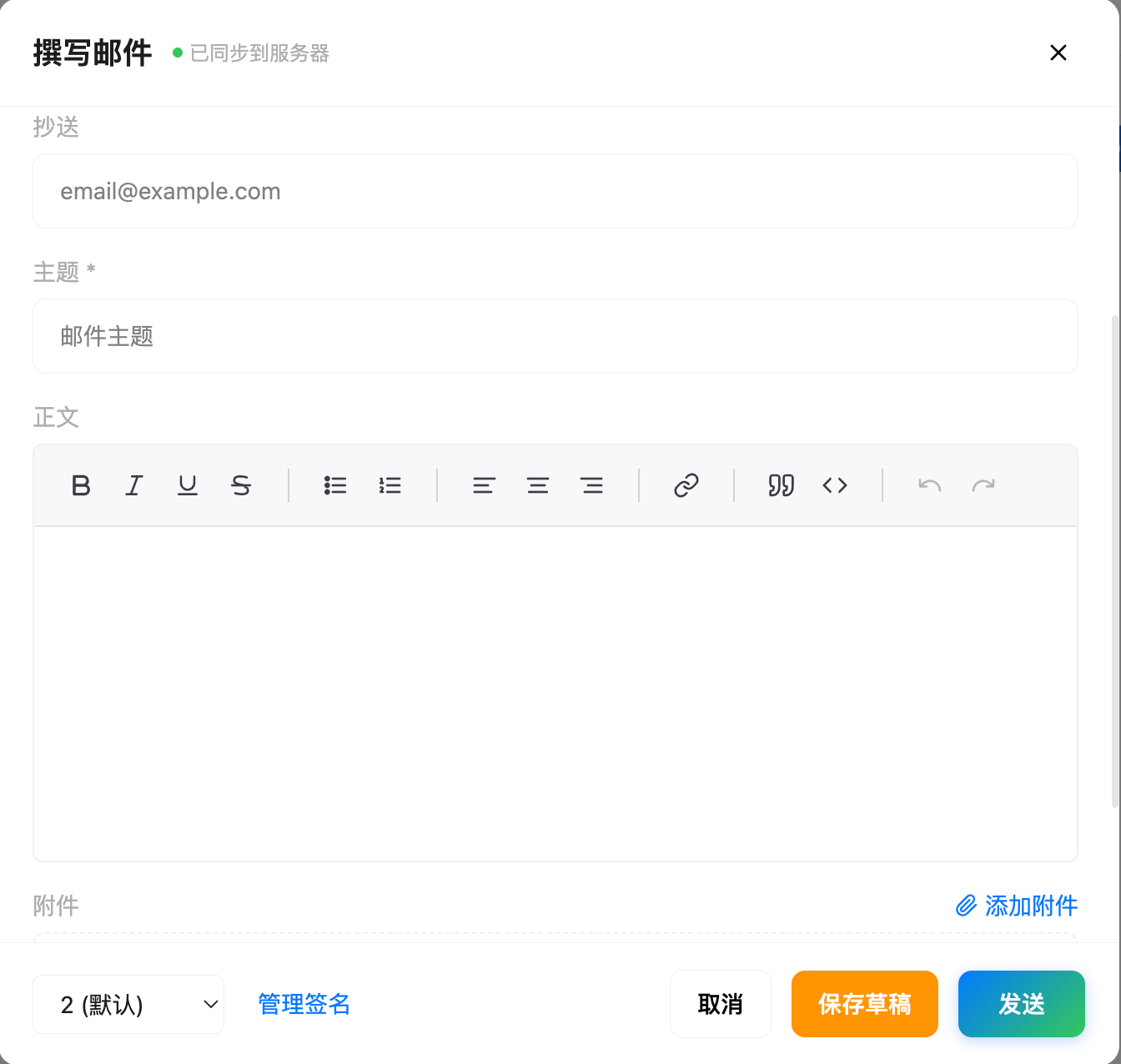
Recipient Input
- Supports multiple recipients separated by commas
- Email format is validated as you type
- Expand the Cc field to add carbon-copy recipients
Rich Text Editor
The email body uses a WYSIWYG rich-text editor with support for:
- Text formatting: bold, italic, underline
- Code blocks
- Ordered and unordered lists
- Pasting images
Adding Attachments
Click + Add Attachment to select local files; multiple files are supported. Added attachments show file name and size; individual attachments can be removed.
Each attachment is limited to 10 MB.
Replying to Email
Two reply methods are available:
Quick Reply
Reply directly at the bottom of the email preview panel without opening the full compose dialog. Toggle between:
- Reply — Reply to sender only
- Reply All — Reply to sender and all recipients
Full Reply
Click Reply or Reply All in the preview panel toolbar to open the full compose dialog. When replying:
- The recipient is auto-filled with the original sender
- The subject automatically gets a
Re:prefix - Thread relationships (
In-Reply-ToandReferencesheaders) are maintained automatically
Forwarding Email
Click Forward in the toolbar to open the compose dialog. When forwarding:
- The subject automatically gets a
Fwd:prefix - The original email content is included as a quoted block
- You need to manually fill in the forwarding recipient
Draft Management
Auto-Save
While composing, the content is auto-saved to local storage every 500 milliseconds. Draft-save status is displayed at the bottom of the compose window.
Closing the Window
When you close the compose window with unsent content:
- The system asks whether to keep the draft
- Keep draft — Content is saved; you can continue editing later
- Discard — All content is deleted
Viewing Drafts
Switch to the Drafts folder in the folder tabs to see all saved drafts. Click a draft to continue editing.
Draft Sync
All account types support draft creation, editing, deletion, and sending:
| Account type | Draft storage | Notes |
|---|---|---|
| Gmail | Gmail server | Drafts sync to Gmail and are visible in the web interface |
| Outlook | Outlook server | Drafts sync to Outlook and are available across devices |
| IMAP | Server Drafts folder | Stored on the server via IMAP protocol |
Signature Management
The bottom of the compose window provides signature selection:
- Choose from existing signatures to append to the email
- Click Edit Signature to create or modify signatures
- Signatures support HTML format
Send Status
Feedback after sending:
- Success — Toast notification "Sent"; the compose window closes and the draft is cleared
- Failure — Toast notification with the error reason; content is preserved for retry
If you send an email while offline, it is queued and sent automatically when the network connection is restored. See Sync and Offline.
Next Steps
- Labels and Folders — Learn how to organize emails with labels
- Mail Rules — Set up automated rules for email processing