Add Email Accounts
DesireCore supports adding multiple email accounts. You can mix different account types; they all appear together in the Accounts Home.
Opening the Add-Account Dialog
On the Accounts Home page, click the + Add Account button in the top-right corner to open the dialog. Three account types are listed for selection.
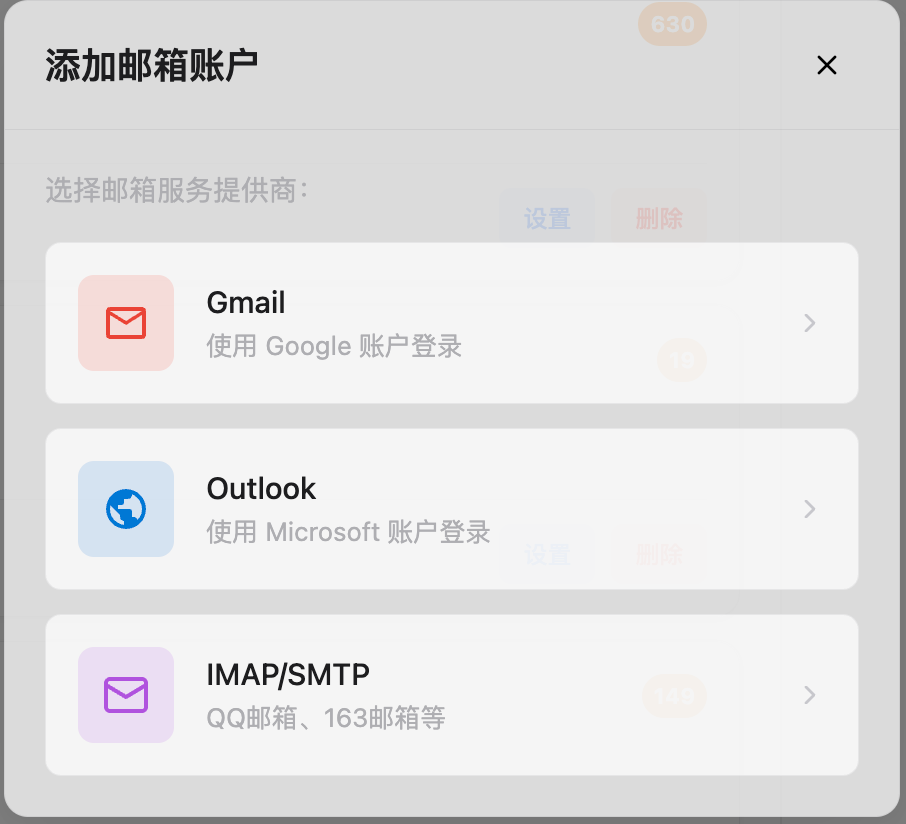
Adding a Gmail Account
Gmail uses Google OAuth 2.0 authorization—no password entry required:
- Select Gmail in the dialog
- A browser window opens and navigates to the Google sign-in page
- Sign in with your Google account and grant DesireCore access to email
- After authorization, the browser closes automatically and the dialog shows success
During authorization, the dialog displays a "Waiting for authorization..." status message.
DesireCore only requests permission to read/write email and manage labels. It does not access your Google contacts, calendar, or other data.
Adding an Outlook Account
Outlook uses Microsoft OAuth 2.0 authorization, with a flow similar to Gmail:
- Select Outlook in the dialog
- A browser window opens and navigates to the Microsoft sign-in page
- Sign in with your Microsoft account and authorize
- After authorization, you are automatically returned to DesireCore
Outlook supports both personal accounts (@outlook.com, @hotmail.com) and Microsoft 365 corporate accounts.
Adding an IMAP Account
For providers that do not support OAuth (such as QQ Mail, 163 Mail), IMAP/SMTP protocol is used:
- Select IMAP/SMTP in the dialog
- Enter your email address and display name
- The system auto-detects common providers and pre-fills server settings
- Enter your password (or app-specific password / authorization code)
- Click Connect; the system validates the configuration and completes setup
During connection, the dialog shows a "Connecting..." status message.
Supported Preset Providers
The following providers have pre-configured IMAP/SMTP server addresses and ports—no manual configuration needed:
| Provider | Notes |
|---|---|
| QQ Mail | Requires an authorization code instead of login password |
| 163 Mail | Requires an authorization code |
| 126 Mail | Requires an authorization code |
| Sina Mail | — |
| Yahoo Mail | Requires an app-specific password |
| iCloud Mail | Requires an app-specific password |
| Alibaba Corporate Mail | — |
| Tencent Corporate Mail | — |
QQ Mail, 163, and similar Chinese providers typically do not allow direct IMAP login with your account password. You need to enable IMAP in the provider's web settings and generate an authorization code, then use that code instead of your password.
Custom Server Configuration
If your provider is not in the preset list, you can fill in the settings manually:
- IMAP server address: e.g.,
imap.example.com - IMAP port: usually
993(SSL) or143 - SMTP server address: e.g.,
smtp.example.com - SMTP port: usually
465(SSL) or587(STARTTLS)
Automatic Post-Setup Actions
Regardless of account type, DesireCore automatically performs the following after setup:
- Sync labels/categories — Pull existing labels (Gmail) or categories (Outlook) from the server
- Fetch recent emails — Download the latest emails from your inbox
- Start background sync — Begin periodic polling to continuously fetch new emails
- Notify frontend — Refresh the account list via WebSocket
You do not need to click sync manually; email management is ready to use immediately after adding an account.
Next Steps
- Unified Inbox — Browse emails from multiple accounts in one view
- Reading Email — Learn about the single-account email view