Notification Management
Agents need to surface important information at the right time. DesireCore routes notifications to the conversation stream, notification center, desktop notification, approval card, or error log depending on source and urgency.
Notification Sources
| Source | Description | Common Presentation |
|---|---|---|
| Agent Messages | Messages proactively sent by agents | Conversation message and unread badge |
| Heartbeat Alert | A heartbeat check found something relevant | Heartbeat card in the conversation stream |
| Scheduled Task Result | A scheduled task completed or failed | Task notification, system notification, execution history |
| Approval Request | A sensitive operation needs confirmation | In-session approval card, notification jump, desktop reminder |
| System Error | Service, tool, or connector failure | System notification and Activity error log |
Heartbeat OK results are silent by default. Heartbeat Alert results appear as cards in the corresponding agent conversation stream and may be persisted to that agent's main conversation. They are not written to the notification center. Only heartbeat execution failures produce a system notification so you can check compute, network, or data-source problems. Scheduled-task query results enter task or system notifications depending on success or failure.
Notification Center
Open the bell icon in the navigation rail to view the notification center. When unread notifications exist, the bell shows an unread state.
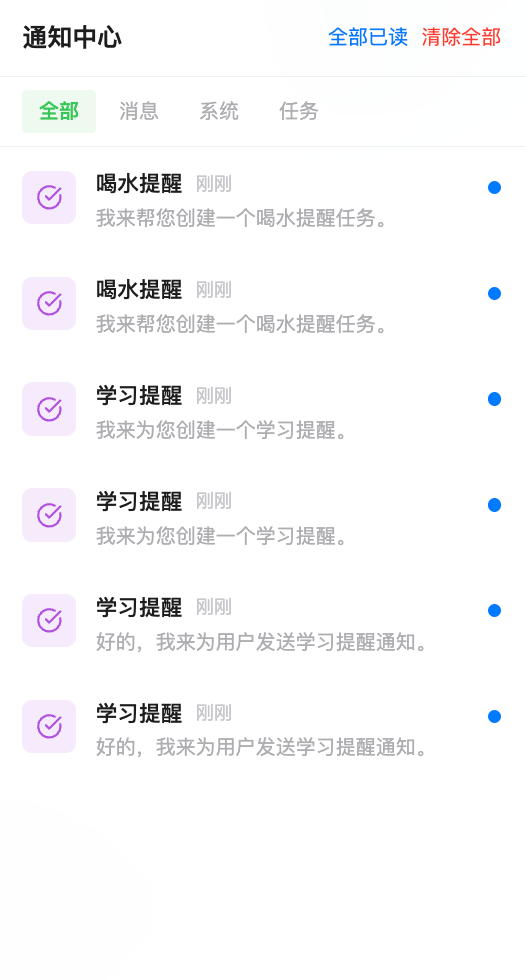
The notification center slides in from the right and includes:
- Top actions: title, Mark all as read, and Clear all.
- Type filters: All, Message, System, Task, Approval, and other available categories.
- Notification list: sorted by newest first.
- Unread state: unread items show a blue dot or badge.
- Jump behavior: clicking a notification marks it as read and tries to open the related conversation, approval card, task record, or error detail.
Each notification usually shows:
- category icon and color
- title
- relative time, such as "just now" or "3 minutes ago"
- short body summary
- unread indicator
Local notification records are migrated to Agent Service storage when available. If the service is unavailable, the client falls back to local storage.
The notification store keeps up to 200 records. When it exceeds that limit, DesireCore removes the oldest read notification first; if every notification is unread, it removes the oldest notification. Press Escape to close the notification center.
Desktop Notifications
When the app is not focused, or an item needs timely attention, DesireCore can use OS-native notifications.
Desktop notifications usually include:
- agent, system, or task name
- short summary
- click behavior that returns to the app and focuses the related place
Browser environments require notification permission the first time desktop notifications are used. If permission is denied, re-enable it from browser or system settings.
App Badge
On supported desktop environments, DesireCore shows an unread notification badge. The badge indicates pending attention, not every background event. Silent records such as heartbeat OK do not increase interruption.
Approval Notifications
Operations that need confirmation appear as approval cards in the corresponding conversation. Notifications guide you back to the right place instead of floating approval dialogs across unrelated pages.
Common approval scenarios include:
- Bash or PowerShell commands
- file writes, edits, or deletion
- sending mail, messages, or external requests
- publishing, importing, or overwriting agent repositories
- workflow human-gate nodes
Approval notifications retain request ID, operation summary, risk information, and status. After a decision, the notification is updated as approved, rejected, timed out, or completed. Pending or timed-out approvals are scanned and resurfaced so a page switch does not hide a decision.
Approval risk has three fixed levels:
| Risk Level | Meaning | Examples |
|---|---|---|
| Low | Small scope and usually reversible | Reading information, marking state |
| Medium | Writes files, calls external services, or changes local state | Generating report files, API calls, batch organization |
| High | May be irreversible, externally visible, or sensitive | Deleting files, publishing, sending mail, high-risk commands |
Muting And Interruption Control
DesireCore reduces repeated interruptions through:
- heartbeat quiet hours, snooze, focus mode, cooldown, and 24-hour Alert deduplication
- busy-signal detection while you are chatting
- unread consolidation in the notification center
- desktop notification and approval notification switches
These strategies reduce unnecessary interruption without deleting audit records. Operations that need a decision still keep an approval entry so you can return to the right context.
Notification Settings
In Settings -> Notifications, you can configure:
| Setting | Description |
|---|---|
| Desktop Notifications | Enable or disable native OS notifications |
| Approval Notifications | Control whether confirmation-required operations enter notification flow |
| Test Notification | Send a test notification to verify permissions and display |
Heartbeat quiet hours, cooldown, snooze, and focus mode are configured in heartbeat settings. They affect whether heartbeat Alerts enter the conversation stream, not notification-center read, clear, or filtering behavior.
Errors And History
Notifications are for attention; detailed failures are recorded in the Activity error log. For tool failures, model errors, connector problems, or background service issues, check Audit Trail.
| Entry Point | Main Purpose |
|---|---|
| Notification center | Review messages, task results, and approval entries |
| Conversation stream | Continue agent messages, heartbeat Alerts, and approval cards |
| Activity log | Debug tool calls, model requests, system events, and error details |