Keyboard Shortcuts Cheatsheet
DesireCore offers three keyboard shortcut modes, which you can switch between in "Settings > Keyboard Shortcuts > Editor Shortcut Mode".
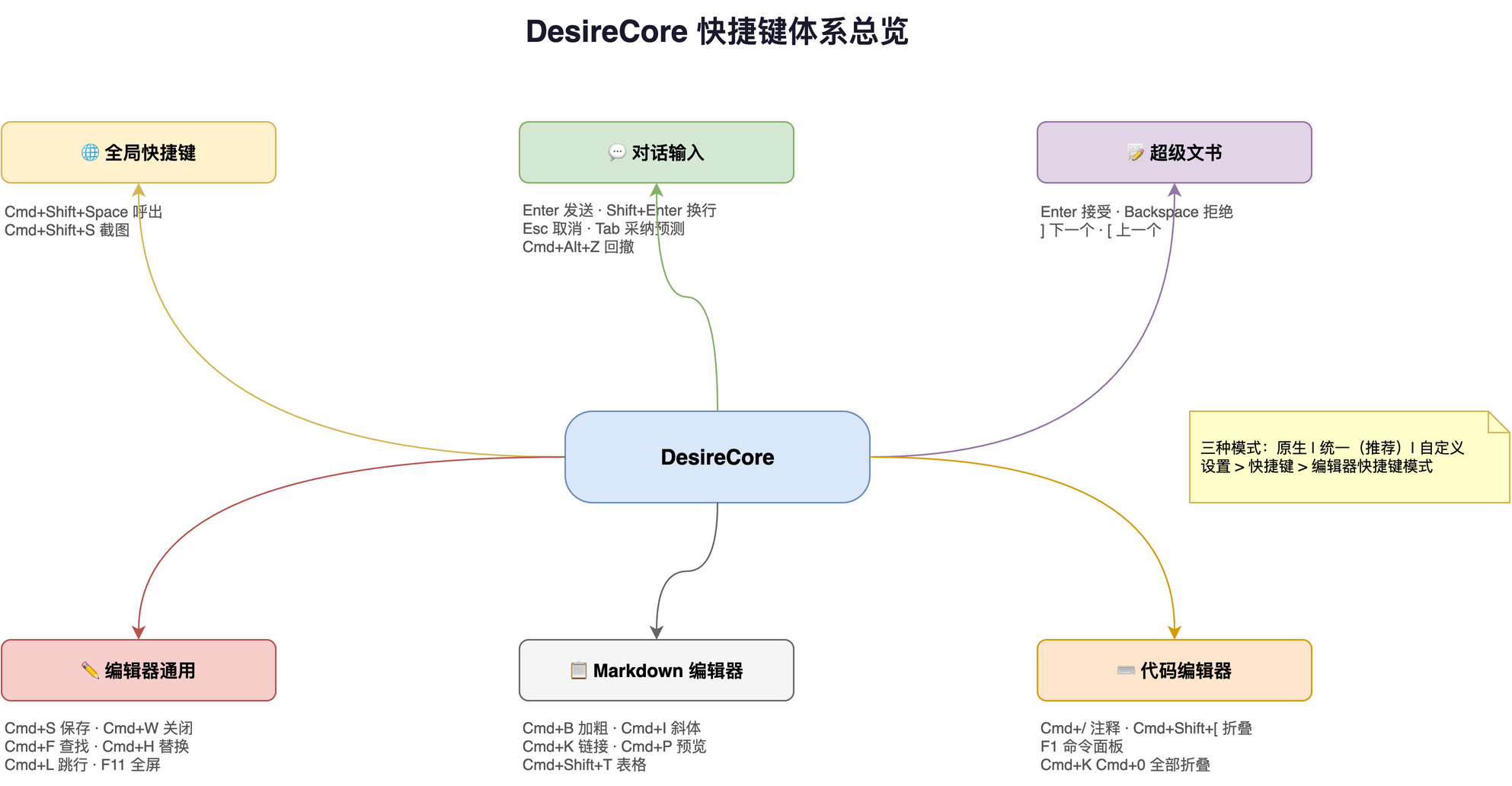
Shortcut Modes
| Mode | Description | Best For |
|---|
| Native Mode | Preserves built-in shortcuts of each editor | Users who don't want to change their habits |
| Unified Mode (Recommended) | Uses DesireCore unified shortcuts | Most users |
| Custom Mode | Fully customizable, allows overriding all shortcuts | Power users |
The following lists default shortcuts in Unified Mode. Mod means Cmd on macOS and Ctrl on Windows/Linux. Some shortcuts always use Ctrl and do not vary by platform.
Global Shortcuts
| Action | macOS | Windows/Linux | Description |
|---|
| Show/Hide Window | Ctrl+Alt+Space | Ctrl+Alt+Space | Quickly summon the app |
| Screenshot | Cmd+Shift+S | Ctrl+Shift+S | Capture screen content |
Workspace Tabs
Workspace shortcuts work at the window level and switch between resource tabs such as files, terminals, web pages, and reviews within a conversation. Ctrl+Tab shortcuts stay the same on every platform.
| Action | macOS | Windows/Linux | Description |
|---|
| New workspace tab | Cmd+T | Ctrl+T | Create a composite page |
| Close current tab | Cmd+W | Ctrl+W | Follows the resource's close behavior, with confirmation when needed |
| Next tab | Ctrl+Tab | Ctrl+Tab | Move through workspace order |
| Previous tab | Ctrl+Shift+Tab | Ctrl+Shift+Tab | Move through workspace order |
| Next tab (alternate) | Cmd+Alt+→ | Ctrl+PageDown | Alternate key combination |
| Previous tab (alternate) | Cmd+Alt+← | Ctrl+PageUp | Alternate key combination |
| Select tab 1–8 | Cmd+1–Cmd+8 | Ctrl+1–Ctrl+8 | Select by mixed resource-tab order |
| Select last tab | Cmd+9 | Ctrl+9 | Select the last resource tab |
| Focus address bar | Cmd+L | Ctrl+L | Available in a web tab |
| Show/Hide workspace | Cmd+Shift+B | Ctrl+Shift+B | Expand or collapse the resource workspace |
If a tab shortcut does not respond, close any dialog or overlay covering the workspace. For a custom binding, check shortcut settings and resolve any conflicts.
| Action | macOS | Windows/Linux | Description |
|---|
| Send Message | Enter | Enter | Send message in input field |
| New Line | Shift+Enter | Shift+Enter | Insert line break in input field |
| Cancel Input | Escape | Escape | Cancel current input |
Super Document
Use review panel buttons to accept or reject changes. Focus a button with Tab, then activate it with Enter or Space. Press Esc inside the floating review panel to collapse it.
General Editing
| Action | macOS | Windows/Linux | Description |
|---|
| Undo | Cmd+Z | Ctrl+Z | Undo last action |
| Redo | Cmd+Shift+Z | Ctrl+Y | Redo last action |
| Cut | Cmd+X | Ctrl+X | Cut selected content |
| Copy | Cmd+C | Ctrl+C | Copy selected content |
| Paste | Cmd+V | Ctrl+V | Paste from clipboard |
| Select All | Cmd+A | Ctrl+A | Select all content |
Editor General
| Action | macOS | Windows/Linux | Description |
|---|
| Save | Cmd+S | Ctrl+S | Save current file |
| Save As | Cmd+Shift+S | Ctrl+Shift+S | Save as new file |
| Close File | Cmd+W | Ctrl+W | Close current file |
| Find | Cmd+F | Ctrl+F | Find in file |
| Replace | Cmd+H | Ctrl+H | Find and replace |
| Find Next | Cmd+G | F3 | Find next match |
| Find Previous | Cmd+Shift+G | Shift+F3 | Find previous match |
| Go to Line | Cmd+L | Ctrl+G | Jump to specific line number |
| Fullscreen | Cmd+Shift+F | F11 | Toggle fullscreen mode |
Markdown Editor
| Action | macOS | Windows/Linux | Description |
|---|
| Bold | Cmd+B | Ctrl+B | Bold selected text |
| Italic | Cmd+I | Ctrl+I | Italic selected text |
| Inline Code | Cmd+` | Ctrl+` | Mark as inline code |
| Strikethrough | Cmd+Shift+X | Ctrl+Shift+X | Add strikethrough |
| Insert Link | Cmd+K | Ctrl+K | Insert link |
| Insert Image | Cmd+Shift+I | Ctrl+Shift+I | Insert image |
| Insert Table | Cmd+Shift+T | Ctrl+Shift+T | Insert table |
| Insert Code Block | Cmd+Shift+K | Ctrl+Shift+K | Insert code block |
| Toggle Preview | Cmd+P | Ctrl+P | Toggle edit/preview mode |
Rich Text Editor
| Action | macOS | Windows/Linux | Description |
|---|
| Bold | Cmd+B | Ctrl+B | Bold selected text |
| Italic | Cmd+I | Ctrl+I | Italic selected text |
| Underline | Cmd+U | Ctrl+U | Underline selected text |
| Strikethrough | Cmd+Shift+X | Ctrl+Shift+X | Add strikethrough |
| Insert Link | Cmd+K | Ctrl+K | Insert hyperlink |
| Heading 1 | Cmd+1 | Ctrl+1 | Set as H1 |
| Heading 2 | Cmd+2 | Ctrl+2 | Set as H2 |
| Heading 3 | Cmd+3 | Ctrl+3 | Set as H3 |
YAML/Code Editor
| Action | macOS | Windows/Linux | Description |
|---|
| Format Document | Cmd+Shift+F | Ctrl+Shift+F | Auto-format code |
| Toggle Comment | Cmd+/ | Ctrl+/ | Toggle line comment |
| Fold Code | Cmd+Shift+[ | Ctrl+Shift+[ | Fold current region |
| Unfold Code | Cmd+Shift+] | Ctrl+Shift+] | Unfold current region |
| Fold All | Cmd+K Cmd+0 | Ctrl+K Ctrl+0 | Fold all code regions |
| Unfold All | Cmd+K Cmd+J | Ctrl+K Ctrl+J | Unfold all code regions |
| Command Palette | F1 | F1 | Open Monaco command palette |
Custom Shortcuts
In "Settings > Keyboard Shortcuts", you can:
- Hover over any shortcut and click "Edit" to enter modification mode
- Press the new key combination to complete the setting
- The system will automatically detect conflicts and warn you
- Click "Reset" to restore default shortcut
- Click "Reset All" to restore all default settings at once