First Run
After installation, open DesireCore and you'll see a sleek, elegant interface with a glass-like aesthetic. Here's a quick tour of what happens after launch.
Startup
On the first launch, DesireCore performs some initialization:
- Creates local data directories
- Installs the built-in core agent (DesireCore)
- Syncs global skills
This process usually takes only a few seconds, during which you'll see a brief loading screen.
Permissions
Depending on your operating system, DesireCore may request the following permissions on first run:
| Permission | Platform | Purpose | Required? |
|---|---|---|---|
| Accessibility | macOS | GUI automation — lets agents control other app windows | Optional, only needed for GUI automation |
| Screen Recording | macOS | Screen capture — lets agents see screen content | Optional, only needed for screen awareness |
| Network Access | All platforms | Calling AI model APIs, syncing data | Required |
| Local File Access | All platforms | Reading and writing work files and knowledge base | Required |
macOS will display a system permission dialog when first requested. If you deny a permission, you can always enable it later in System Settings → Privacy & Security. You can also check and manage permission status in DesireCore's Settings → System Permissions.
DesireCore follows a principle of least privilege — it only requests permissions when actually needed. For your initial experience, even without granting Accessibility and Screen Recording permissions, core features like conversation and agent management work perfectly fine.
Main Interface Overview
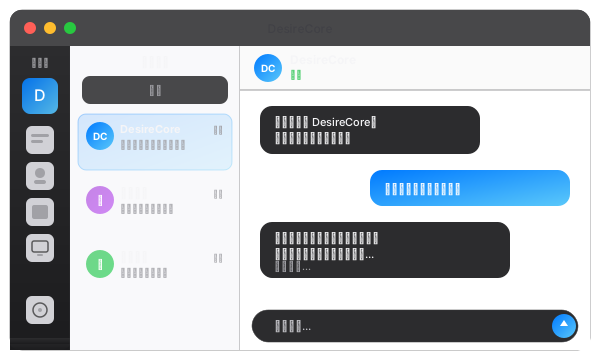
After startup, you'll enter DesireCore's main interface. It uses a three-column layout:
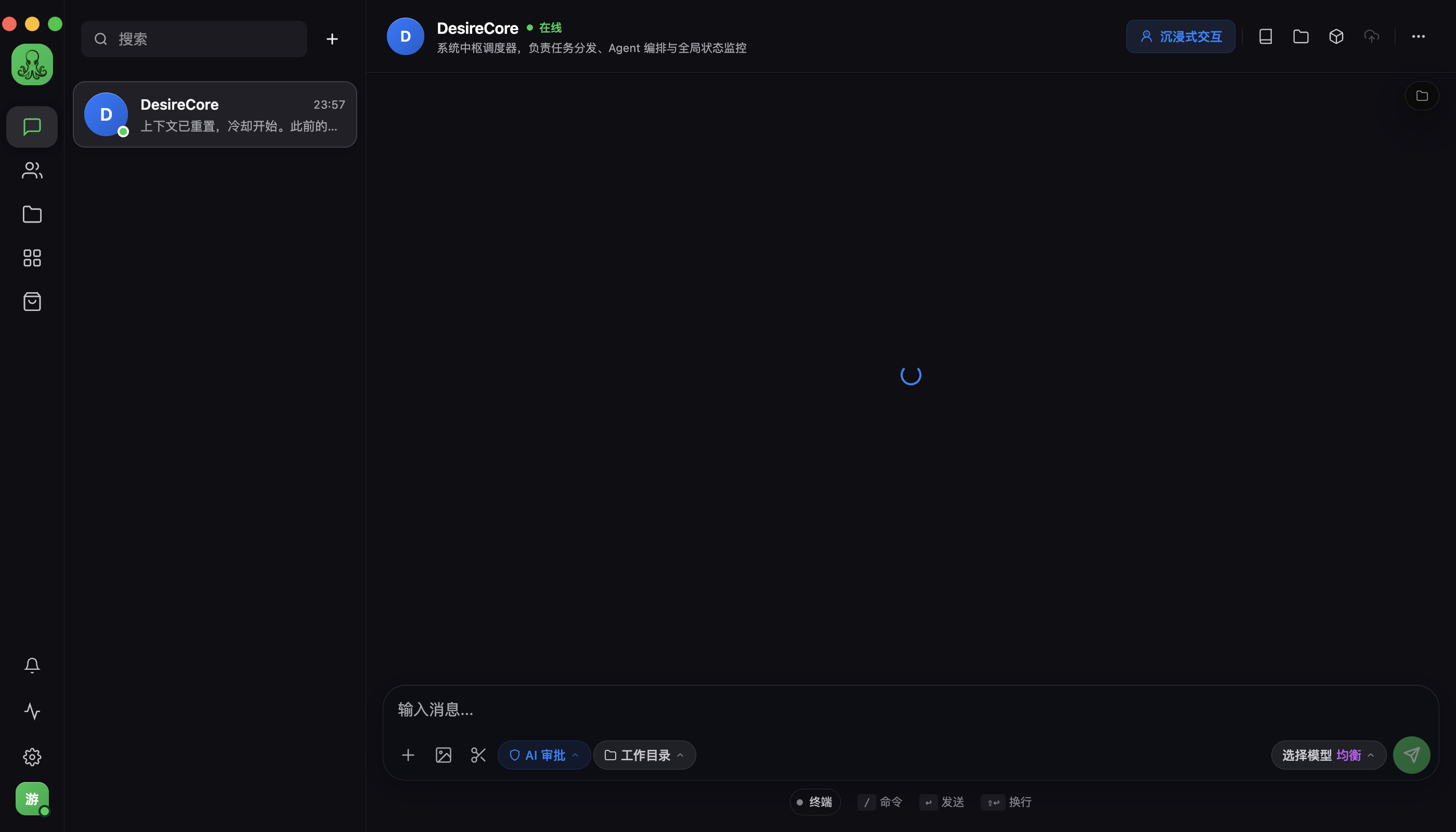
Below is a real interface screenshot (dark mode):
Navigation Bar (Left)
The narrow strip on the far left is the navigation bar, with the following items from top to bottom:
- Logo: DesireCore icon (click to return to home)
- Conversations: Chat interface (default page)
- Agents: Manage your AI companions
- Knowledge Base: View and manage knowledge resources
- Notifications: View system notifications and alerts
- Settings: Application settings (bottom area)
- Avatar: Your profile and account management (very bottom)
The navigation bar may also contain entries for Marketplace, Automation, Compute Management, etc. Specific items may change with version updates. Hover over icons to see feature names.
Conversation List (Center)
The list displays all your conversation sessions. On first launch, you'll see a pre-installed core agent — DesireCore, your general-purpose AI assistant.
Chat Area (Right)
This is the main area for interacting with your AI companion:
- Top: Shows the current conversation's agent name, online status, and description
- Center: Conversation message stream (empty on first launch)
- Bottom Input Box: Type your message and press Enter to send, Shift + Enter for a new line. Below the input box are auxiliary buttons for attachments (+), image upload, model selection, etc.
- Status Bar (very bottom): Shows keyboard shortcuts, such as
↵ Send,⇧ New Line
Hover over navigation bar icons to see feature names. For detailed descriptions of each interface area, see Interface Navigation.
Next Step
Now that you've seen DesireCore's interface, the most important next step is to Configure API Key — telling DesireCore which AI provider you'd like to use to power your agents.